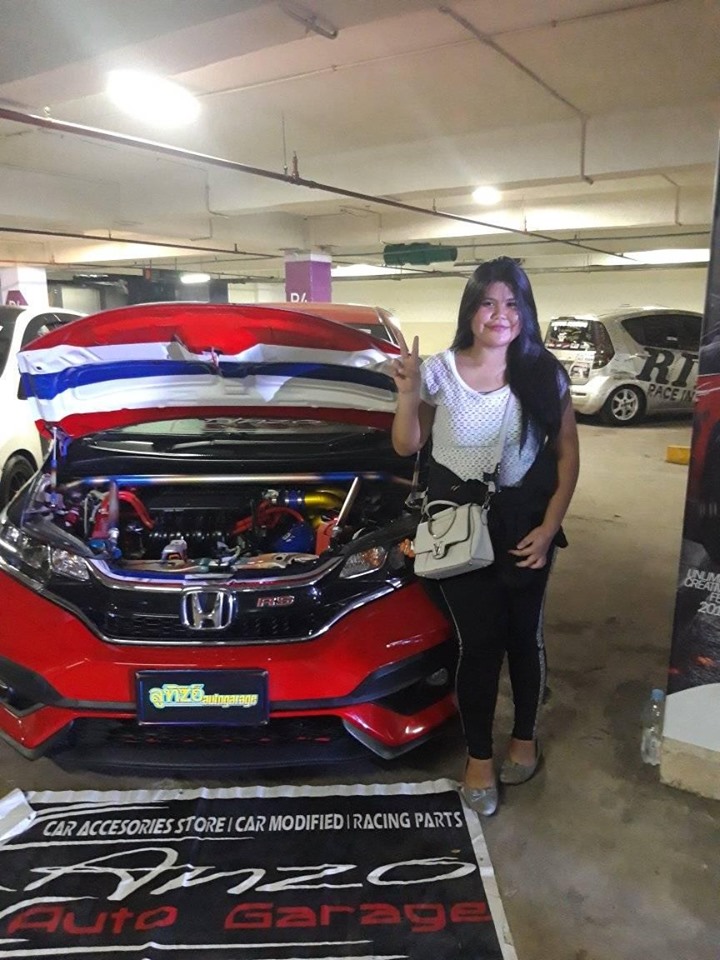
STANCE NATION JAPAN G NATION2018

THERESA TAKAHASHI

CARA MENGINSTAL WINDOWS 10

  1. Nyalakan komputer atau Laptop. Khusus yang memakai Flashdisk sebagai media instalasi, masukan terlebih dahulu Flashdisknya sebelum PC dinyalakan, agar terdeteksi sama PC.
  2. Atur “Boot” atau “Booting” Pertama di Menu BIOS atau UEFI (Tampilan bermacam-macam tergantung MERK).

    Masuk Menu BIOS dengan menekan tombol “Del” terus-menerus dengan cepat SAAT menyalakan PC, mungkin pada merk lain dapat mencoba menekan tombol F1 / F2 / F9 / F10. Mungkin juga sambil menekan tombol “fn” sama-sama dengan F1 / F2 dst, supaya tombol tersebut berfungsi.Sesudah masuk Menu “BIOS”, kemudian cari “Boot” dan Pastikan Booting pertama menggunakan DVD ATAU Flashdisk sebagai medianya. Boot ini pada merk lain terkadang harus dicari dan disesuaikan, cari aja sampe ketemu.Video: cara mengatur booting PC
  3. Masukan DVD Windows 10 buat yang memakai drive-optic sebagai medianya.
  4. Jika pengaturan Boot sudah benar, maka simpan atau “save” dan “restart”, nanti akan tampil seperti gambar dibawah, kemudian tekan ENTER untuk memulai proses instalasinya.
  5. Pilih Bahasa “English” kemudian klik “Next”.
  6. Klik “Install now” untuk melanjutkan.
  7. Masukan “Product Key” windows 10.
  8. Klik kotak kecil “I Accept the license terms”, dan kemudian klik “Next”.
  9. Pilih “Custom: Install Windows only (Advanced)”. Ini adalah prosedur “Clean Install” dan mulai instalasi dari awal agar sistem operasi terbebas dari virus dan bersih.
    Image: Custom/Advanced Install windows 10
  10. Atur Partisi untuk memilih penginstalan sistem sesuai dengan keinginan. Tapi harap di ingat Partisi sistem operasi sebelumnya harus dihapus dengan menekan “Delete” kemudian ganti dengan partisi baru. Pengaturan ini bisa dilakuin memakai kursor mouse yang di atur pada partisi tertentu, nanti tombol pengaturan lengkap akan tersedia.
    • “New” untuk membuat Partisi baru.
    • “Delete” untuk menghapus Partisi.
    • “Format” untuk format Partisi.
    • Harap diperhatikan, Pastikan Partisi yang berisi data penting tidak terhapus, ini merupakan langkah yang sangat penting dan harus hati-hati, dan jika tidak yakin simpan aja dulu data penting pada tempat lain yang aman dan ulangi lagi prosesnya dari awal.
    • Atur kursor pada partisi yang diinginkan untuk instalasi windows yang baru, kemudian klik Next seperti gambar di atas untuk melanjutkan.
  11. Memulai proses transfer dan instalasi secara otomatis.

    Tahap ini berlangsung otomatis, nanti akan restart juga secara otomatis selama beberapa kali dan biarkan saja jangan klik apapun sampai pada gambar berikutnya.Kalo waktu proses ini ada “error” (getting files ready for installation), itu artinya memori kurang bagus alias rusak, bisa di coba ulang kembali prosesnya atau ganti memorinya.
  12. Bagi yang memakai Flashdisk, maka Flashdisknya WAJIB dicabut ketika restart, agar tidak terjadi pengulangan.
  13. Setelah restart otomatis beberapa kali, nanti diminta memasukan data nama dan pengaturan, bisa diisi bebas.
  14. Kalo udah mengisi datanya nanti terlihat gambar berikutnya seperti ini.
    Image: Windows 10, CC-BY SA 4.0
  15. Selesai.

Harap diperhatika setiap selesai instalasi, bagusnya cek juga driver-windows seperti Graphics driver, Audio, Network, atau yang berhubungan sesuai merknya. Driver sangat PENTING untuk menjaga performa PC agar maksimal, berpengaruh sama kerjanya aplikasi. Biasanya Driver ada di CD/DVD terpisah dikasih waktu membeli Laptop atau Komputer, kalo ga punya harus download dari internet. Tapi Pada sebagian besar Merk Modern, biasanya ini ga perlu juga, soalnya sudah terintegrasi sama sistem.

Introduce Yourself (Example Post)

This is an example post, originally published as part of Blogging University. Enroll in one of our ten programs, and start your blog right.

You’re going to publish a post today. Don’t worry about how your blog looks. Don’t worry if you haven’t given it a name yet, or you’re feeling overwhelmed. Just click the “New Post” button, and tell us why you’re here.

Why do this?

  • Because it gives new readers context. What are you about? Why should they read your blog?
  • Because it will help you focus you own ideas about your blog and what you’d like to do with it.

The post can be short or long, a personal intro to your life or a bloggy mission statement, a manifesto for the future or a simple outline of your the types of things you hope to publish.

To help you get started, here are a few questions:

  • Why are you blogging publicly, rather than keeping a personal journal?
  • What topics do you think you’ll write about?
  • Who would you love to connect with via your blog?
  • If you blog successfully throughout the next year, what would you hope to have accomplished?

You’re not locked into any of this; one of the wonderful things about blogs is how they constantly evolve as we learn, grow, and interact with one another — but it’s good to know where and why you started, and articulating your goals may just give you a few other post ideas.

Can’t think how to get started? Just write the first thing that pops into your head. Anne Lamott, author of a book on writing we love, says that you need to give yourself permission to write a “crappy first draft”. Anne makes a great point — just start writing, and worry about editing it later.

When you’re ready to publish, give your post three to five tags that describe your blog’s focus — writing, photography, fiction, parenting, food, cars, movies, sports, whatever. These tags will help others who care about your topics find you in the Reader. Make sure one of the tags is “zerotohero,” so other new bloggers can find you, too.

Rancang situs seperti ini dengan WordPress.com
Mulai